Create each child’s profile
Add a name, birthday, photo, and optional gestational age. Create one profile for each child so care and development records stay distinct.
Family → Add Another Child
Learn how to shape Kinleaf around the care, development, routines, and little moments that matter to your family.
KINLEAF CHANGES WITH YOUR FAMILY
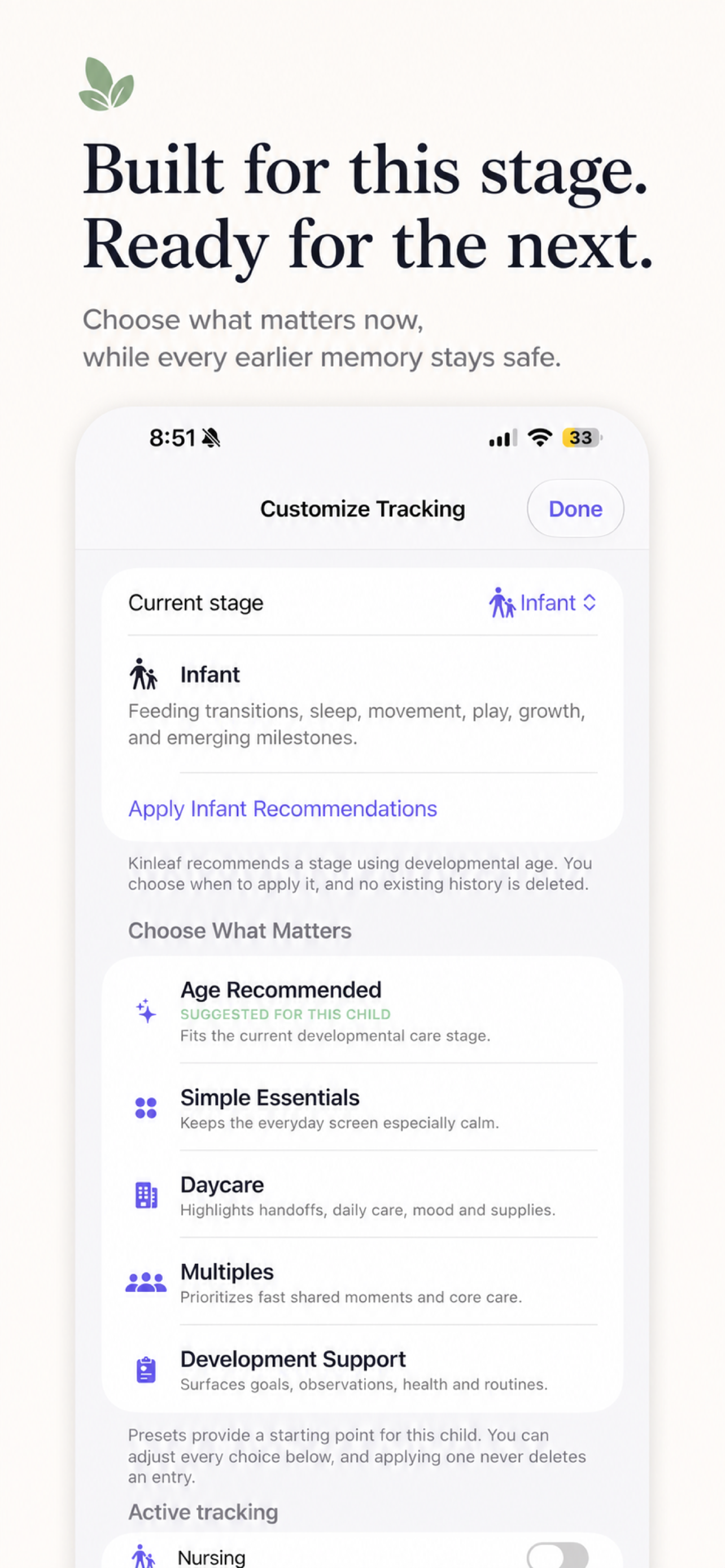
Every child profile can have its own care stage, active trackers, Add menu, Today’s Story, and Snapshot. Hiding something changes the presentation—not the history you already recorded.

FROM INFANCY FORWARD
Kinleaf starts with the care your family needs today and makes room for what matters next—without forcing every child into the same experience.
INITIAL SETUP
This guided path takes you from the first child profile to a private family space, personalized tracking, development tools, and your first calendar plan.
Add a name, birthday, photo, and optional gestational age. Create one profile for each child so care and development records stay distinct.
Decide whether Kinleaf will stay on this device or be shared privately with another parent, family member, or caregiver. You can invite people later, too.
Send the Apple-managed invitation. The other person accepts it with the Apple Account used for iCloud, then both devices confirm that the shared family space is up to date.
Multiples Mode makes shared moments faster. Activities, baths, routines, notes, reminders, and photos can be added together while feeding, sleep, health, measurements, medication, and development remain child-specific.
Tap + Add in the bottom navigation. At the top of Add, open the Care Stage card to reach Customize Tracking and review Kinleaf’s age-aware suggestion. Choose the stage that best reflects this child and your family’s present needs—the recommendation is a starting point, not a rule.
From Customize Tracking, enable only the tools that fit your family—such as bottle, nursing, pumping, stored milk, foods, sleep, diapers, health, mood, or activities. There is no preferred feeding method, and every choice can change later.
Explore optional CDC milestone checklists, corrected age when appropriate, and the Development Hub for custom goals, observations, evidence, therapy, specialist notes, and questions.
Visit the calendar and add an upcoming appointment, therapy visit, daycare closure, birthday, playdate, supply reminder, or another date your family wants close at hand.
YOU’RE READY WHEN
A RECORD THAT GROWS
From infancy and toddlerhood through school years and adolescence, Kinleaf adapts what families can record as care, routines, development, and priorities change.
Bottles, nursing, pumping, stored milk, foods, sleep, diapers, potty learning, bathing, strolls, activities, routines, moods, notes, and photos.
Selectable CDC age-based milestones, corrected age, WHO/CDC growth-percentile references, custom goals, progress evidence, Growth Leaf, therapy and specialist organization.
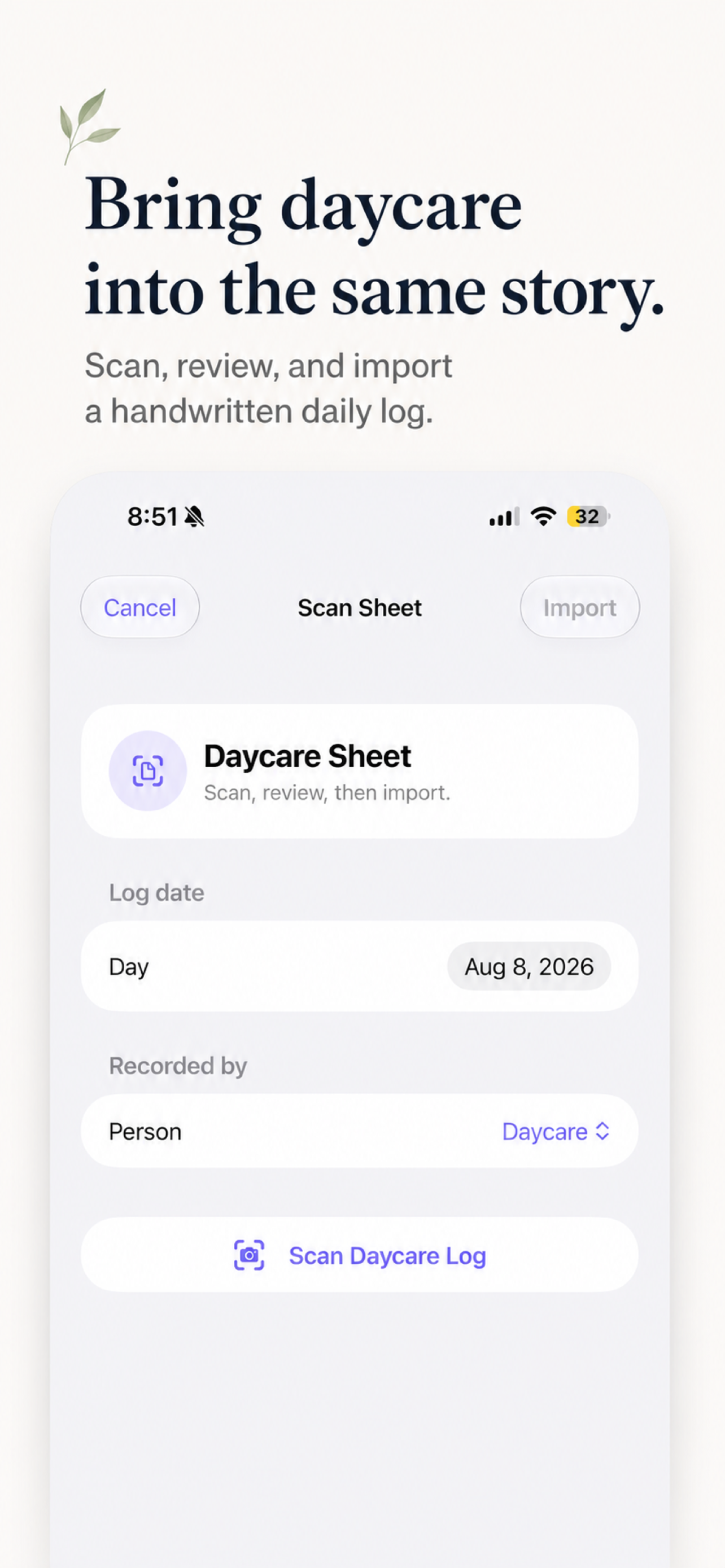
Scan consistent daycare sheets, review uncertain details, add missed items, and combine daycare and home moments.
A calendar and timeline for recorded days, appointments, birthdays, playdates, reminders, and important family dates.
Medication, symptoms, typed temperature and growth measurements, actual vaccine history with routine schedule context, and a Visit Pack for professional conversations.
Apple-managed invitations, caregiver attribution, offline use, and secure synchronization through the family’s iCloud accounts.
DAYCARE TO HOME
GROWTH LEAF & DEVELOPMENT HUB
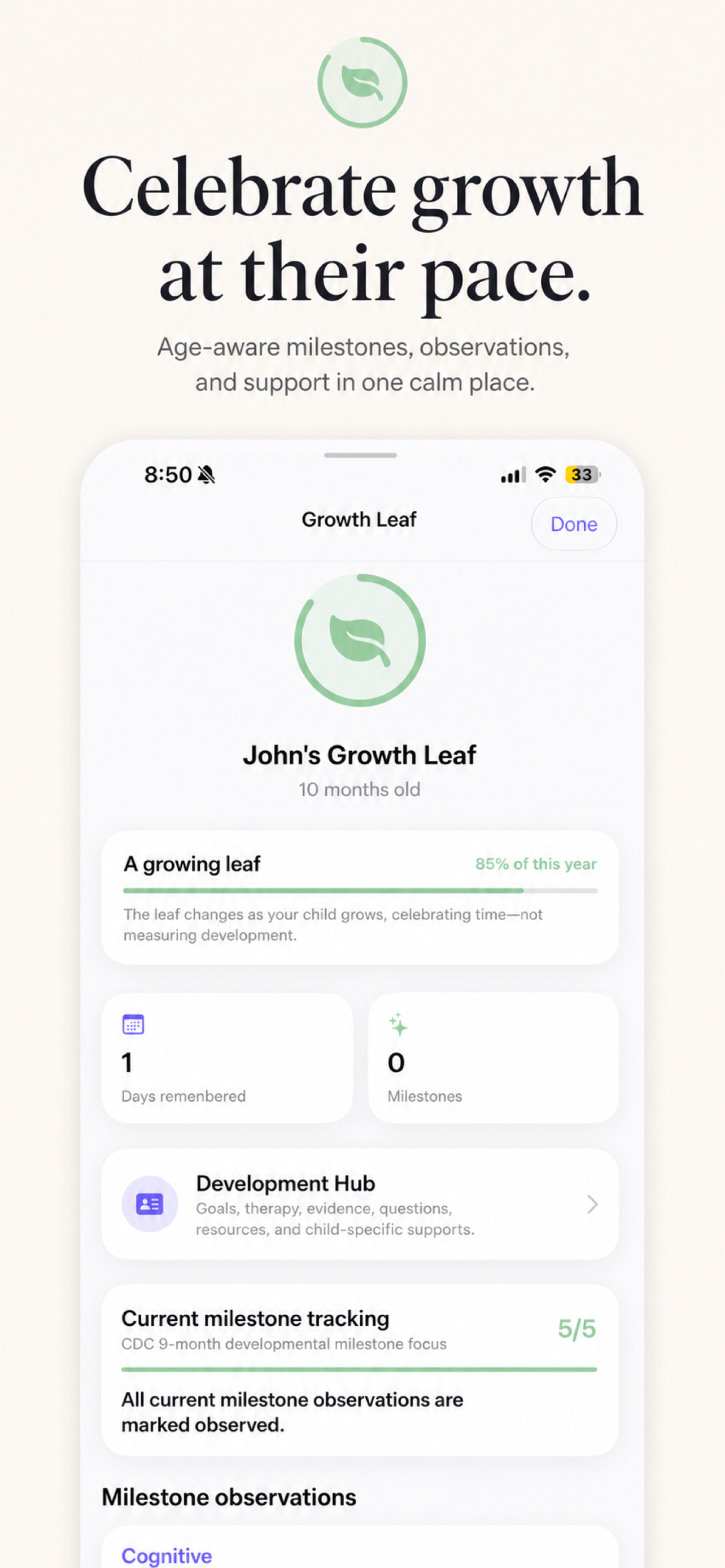
Use age-aware milestones as an optional reference, add corrected gestational age when appropriate, or create goals around what matters for this child. Statuses such as working on, emerging, achieved, and paused keep progress flexible.
VISUAL MINI-GUIDES
These quick guides use real Kinleaf screens so the controls feel familiar before you open the app.
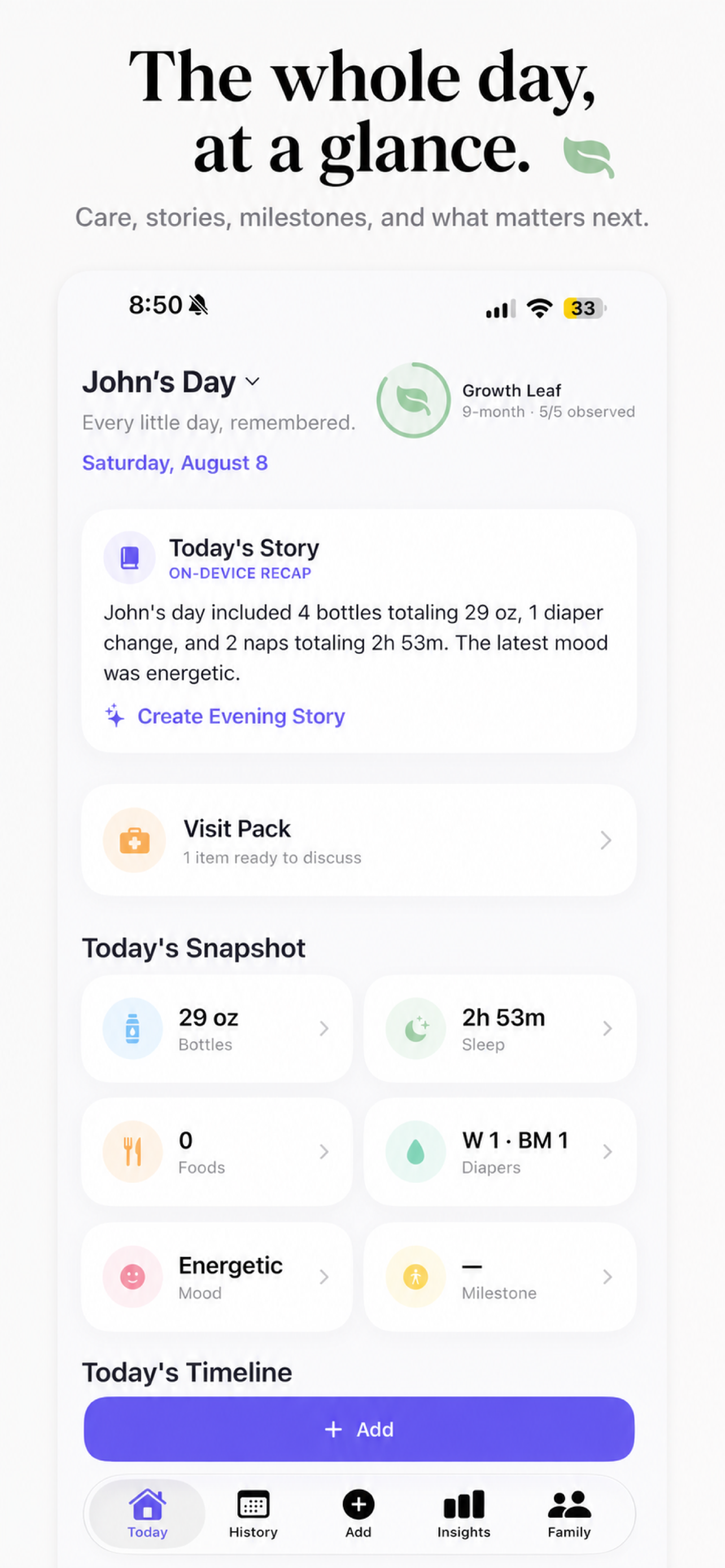
See the recap, Visit Pack, chosen Snapshot cards, and the timeline. Tap a Snapshot card to open that group of entries.
Open Add, select the Care Stage card, and customize what appears in Add, Story, and Snapshot for each child.
Capture the report, verify every detected detail, correct uncertain times, add missed items, and then import.
Use Growth Leaf for optional milestone references and Development Hub for goals, observations, evidence, visits, and questions.
PRIVACY & PROTECTION
Apple supplies important platform and iCloud protections. Kinleaf is still responsible for how the app is designed, what it collects, and what it tells you. App Store review supports trust—it does not replace Kinleaf’s own privacy commitments.
Kinleaf benefits from iOS protections such as app isolation, device encryption, the device passcode, and Face ID when you enable Kinleaf’s lock.
Family synchronization uses private CloudKit records, Apple Account authentication, and Apple-managed invitations instead of a public Kinleaf database.
A local copy keeps Kinleaf useful offline. On-device stories and insights avoid sending recorded family details to an outside AI service.
Kinleaf does not sell family care or development information, use third-party advertising SDKs, or build profiles for targeted advertising.
Only record what helps your family. Protect every participating Apple Account with a strong password and two-factor authentication.
TROUBLESHOOTING
Start with the safest recovery step. Kinleaf is local-first, so avoid deleting the app while records or invitations are being recovered.
On the invited device, open Family → Kinleaf Family and choose Find Accepted Family Invitation. Confirm the Apple Account matches iCloud, then use Restore Missing Data from iCloud and Sync Now. Do not create another copy of the shared child profile.
Confirm both people are viewing the same child profile and are running the same Kinleaf build. Open Kinleaf Family on both devices, run Sync Now, leave the app open briefly, and revisit the affected date or profile.
Choose the recovery option instead of creating a new child. Open Family Sharing and use Restore Missing Data from iCloud or Find Accepted Family Invitation. Do not delete the app while recovering records.
Stay on the review screen. Correct the detected information, disable anything incorrect, and use the add option inside the appropriate group before importing. The preview is the final confirmation step.
Your local record remains available. Check that iCloud Drive is enabled, confirm internet access, and use Sync Now. If the message names a field or record type, include that exact message and the app build number in a support request.
Synchronize first. Install the App Store version over the TestFlight version and confirm that profiles and History are present before deleting anything. Keep the same bundle and iCloud account.
COMMON QUESTIONS
Open a question for a quick answer. Your records are never changed by reading this guide.
Yes. Tracking preferences belong to each child. You can apply an age-aware starting point and then turn individual categories, Story content, and Snapshot cards on or off without deleting history.
Yes. Multiples Mode supports fast shared moments while keeping feeding, medication, health, sleep, measurements, and developmental records child-specific.
No. Kinleaf organizes information recorded by a family. It does not diagnose, determine urgency, or replace a qualified health or developmental professional.
Kinleaf is local-first. Private family synchronization uses Apple CloudKit and iCloud sharing. The app does not create advertising profiles.
Choose the recovery option instead of creating another profile. You can also open Family Sharing and select Restore Missing Data from iCloud or Find Accepted Family Invitation.
Sync first, then install the App Store version over TestFlight. Do not delete the app before confirming the App Store version opens with your records.
Open the related Snapshot group or History, select the entry, and edit it. Destructive actions require confirmation, and synchronized changes are shared with the family.
Open Add, select Scan Daycare Sheet, choose the log date and caregiver, scan the sheet, review every detected item, add anything missed, and then import.
No. Kinleaf separates the child’s actual vaccine record from the CDC reference schedule. A supported follow-up date can become a parent-confirmed reminder, but timing and whether a dose counts toward a series must be verified with the child’s clinician.
OUR LONG-TERM VISION
Kinleaf begins with everyday family life and is being designed to remain useful as children grow, needs change, and new questions arise.
Today, Kinleaf focuses on family organization and childhood records. Broader support experiences are part of our long-term direction.
Explore our visionNEED A HAND?
When asking for help, describe what you expected, what happened, your iPhone model, and the Kinleaf build number. Please do not email private health details or child photos.